

Karaoke
Separate vocals and accompaniment on-device, lower the original vocal, and record yourself with the microphone.
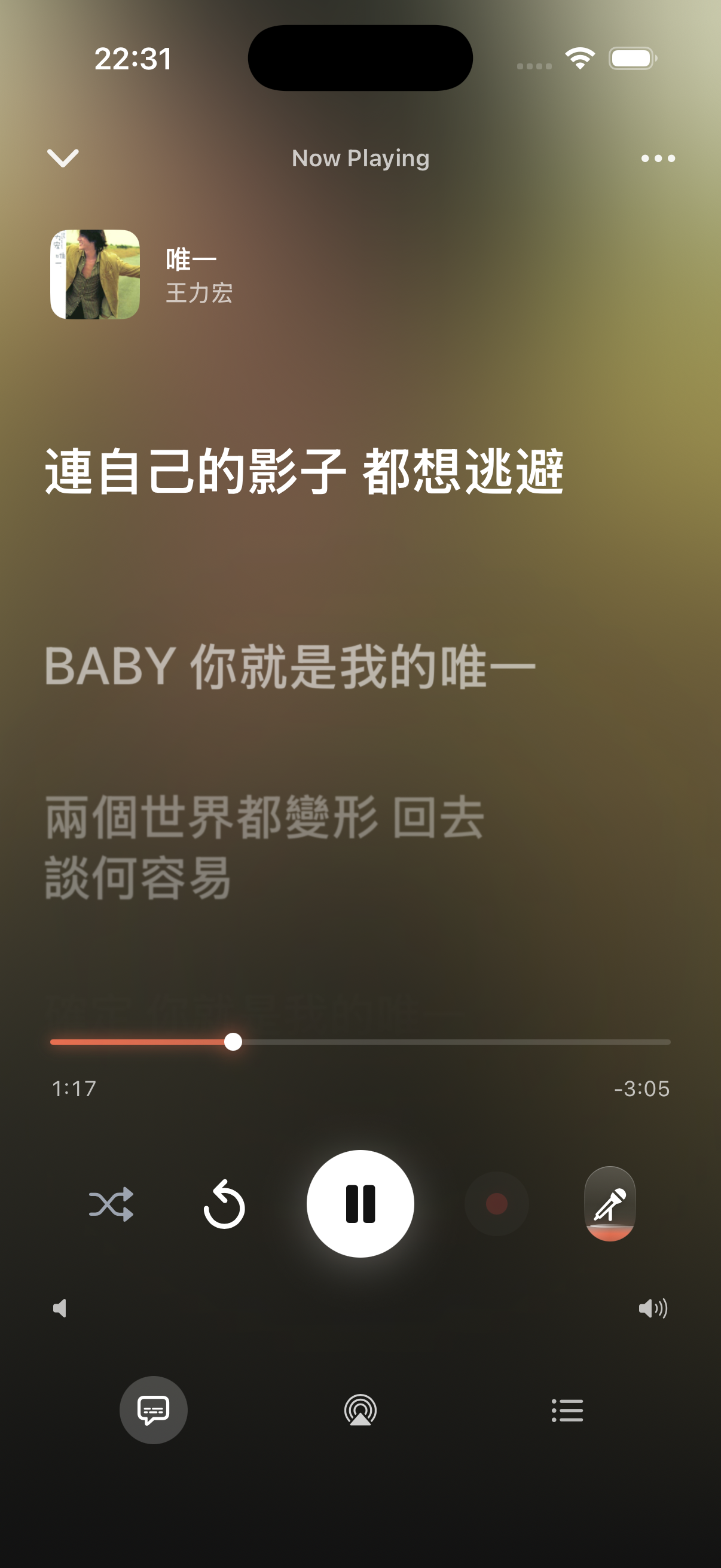
How it works
In karaoke mode, TuneSync splits the song into vocal and accompaniment stems right on your phone, and the two volumes are independent: drop the original vocal, keep the accompaniment, and sing along. The whole thing runs on-device — your songs aren't uploaded and it doesn't hit the network.
The karaoke flow
- 1
Prepare the split
In the player, tap the mic button and pick “Prepare Karaoke”. TuneSync splits the song into vocal and accompaniment on-device, processes it in chunks, and caches the result for next time.
- 2
Start
When it's ready the button becomes “Start Karaoke”. Tap it — the accompaniment plays, vocal dropped.
- 3
Adjust the vocal, record
Use the vertical slider to set how much vocal stays. Want to record? Tap record, count down 3-2-1, and it captures your voice mixed with the accompaniment.
- 4
Save, play back
On stop you can “Save and Stop”, “Discard”, or “Keep going”. Saved recordings live in “Settings → My Recordings” — play, share, or clear them.
Vocal slider
The karaoke console has a vertical slider: push up to raise the original vocal, push to the top to collapse it back into the mic button. After the split finishes it pops open with a little haptic. Drag to the bottom to fully mute the vocal, or stop halfway to leave a little for guidance.
Recording
Tap record to start; the full flow:
- 3-2-1 Get ready countdown — time to put on headphones, find the key
- Live input level (green → yellow → red) and a timer while recording, so you can see how loud you are and how long you've been singing
- Pause and resume, in sync with playback — pause the song and recording stops too
- On stop: Save and Stop, Discard Recording, or Keep going — no accidental deletes
First time needs a model
Vocal separation uses an on-device model (MDX-light, running via Core ML). First use means getting it ready under Settings → Vocal Separation — just download it. Separation works in chunks stitched together (chunk + overlap-add), and the result is cached for reuse — so the first time a given song takes a bit (tens of seconds), after that it's instant.
My Recordings
Saved takes live in Settings → My Recordings as .m4a files. Play, share, or delete them, or open Recording Studio to trim and shape the sound. A take contains your vocal and accompaniment with input/output latency compensation to keep them aligned.
Keep editing after you save
After Save and Stop, choose Edit Recording to enter Recording Studio immediately. You can also open it later from Settings → My Recordings. Edits render to a separate file, so the original take is never overwritten.
Karaoke device compatibility
TuneSync requires iOS 18 or later. iPhone 13 and newer support full automatic vocal separation; iPhone 12 can prepare individual songs manually. iPhone 11 and earlier cannot create new separations, but cached karaoke tracks and existing recordings remain available.
Live Activity
Separation supports Live Activity — the Dynamic Island and lock screen show how far along the split is, so you don't have to stay in the app and wait.