

Recording Studio
Trim karaoke takes against their real waveform, shape the sound, and keep an original you can always restore.
How to open it
After saving a karaoke take, choose Edit Recording. Or go to Settings → My Recordings, open a recording's menu, and choose edit.
Editing workflow
- 1
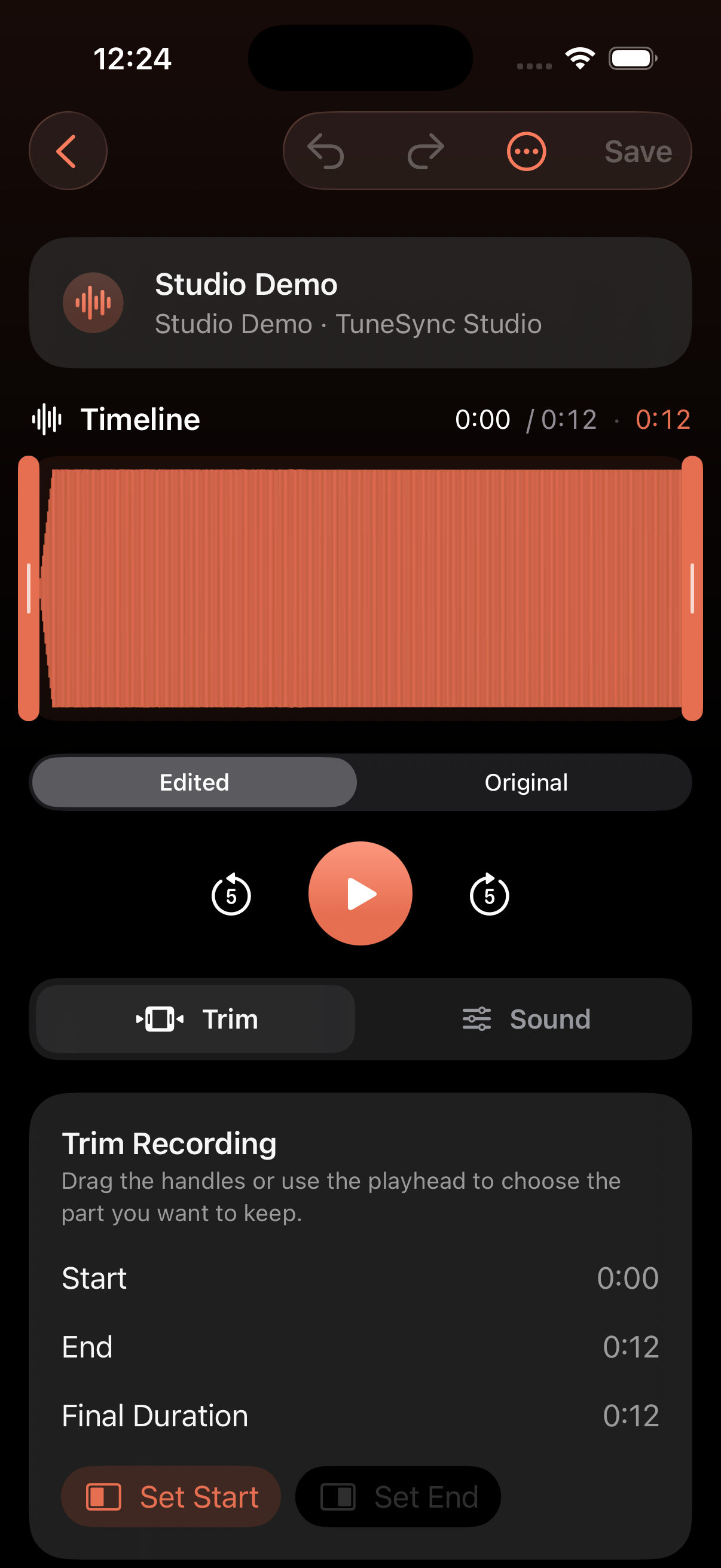
Choose the keep range on the waveform
Drag the trim handles at either end of the timeline, or park the playhead and set it as the start or end. The final duration updates as you work.
- 2
Compare the original and edit
Switch between Original and Edited, then use play, skip back or forward five seconds, and the timeline to check every cut and sound change.
- 3
Shape the sound
Open Sound to adjust the master level and choose No Ambience, Studio, or Concert Hall room character.
- 4
Save or share
Tap Save to render the edited version. Share the finished file directly, or restore the original from the More menu when you want a clean start.
Editing controls
- The waveform timeline shows the selected range, playhead, and final duration
- Original / Edited A/B preview with five-second skip controls
- Undo and redo track trim and sound changes made in the current editing session
- Sharing uses the current effective version; save first to share the finished edit
Non-destructive by design
Saving an edit never overwrites the original .m4a. TuneSync keeps the source and renders a separate edited copy, so you can revise it again or restore the original with one action.
Files and storage
Original and edited recordings stay in the app's local storage. The list marks edited takes and shows effective duration and total stored size; deleting a recording removes both its source and edited file.