

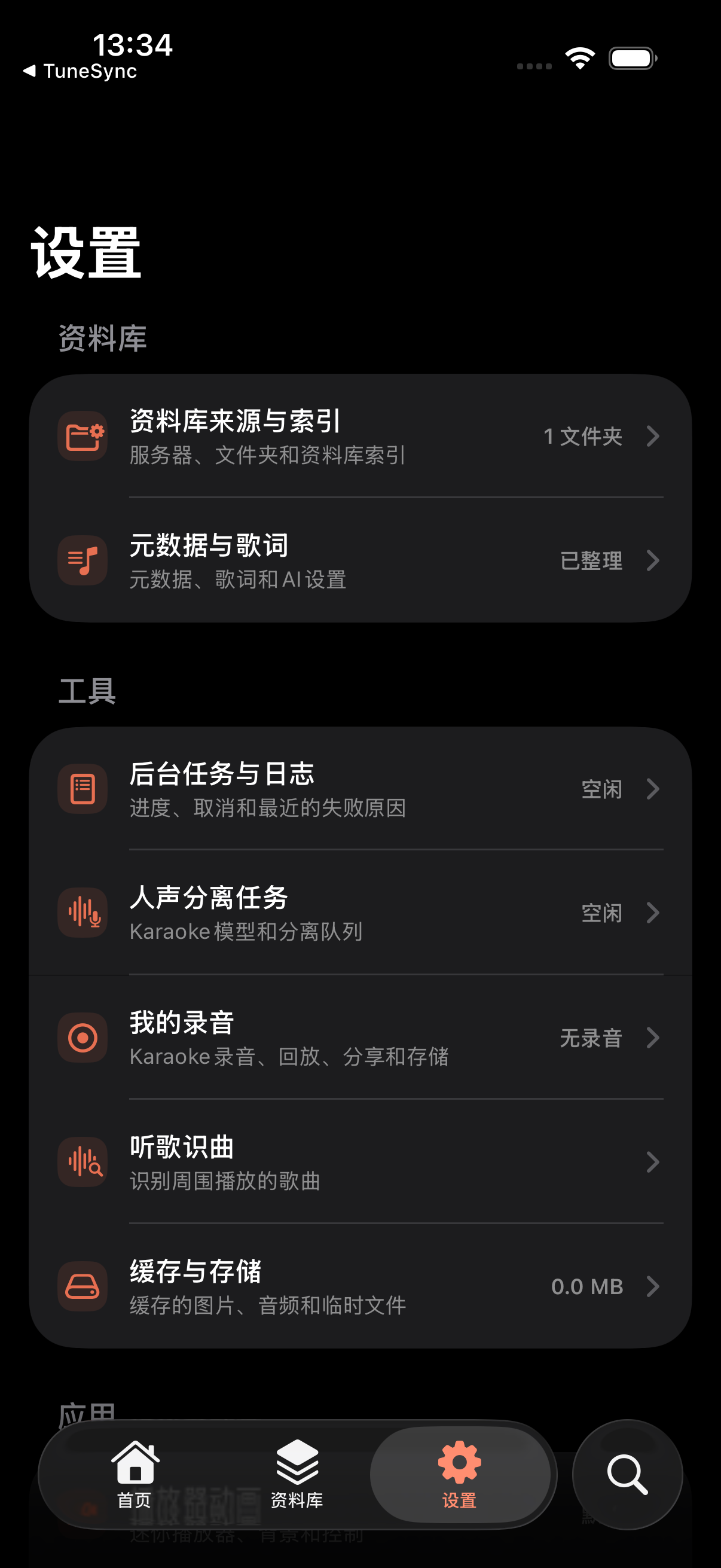
Settings
Appearance, language, player animation, cache, and background tasks.
Appearance
| Display mode | Light / Dark / System |
| Language | Simplified Chinese / English / System |
Player animation
Tune the player animations if they feel like too much or too little:
- Mini-player height — how much room it takes at the bottom
- Backdrop ramp — how strongly the artwork color fills the background
- Controls reveal — the timing of buttons appearing when you enter full-screen
Cache and storage
Under Settings → Cache & Storage, see how much artwork, audio, and temp cache take up. If it's gotten large, clear it in one tap. Clearing doesn't touch your library — next time you browse it just regenerates thumbnails and caches.
Background tasks and logs
Settings → Background Tasks & Logs puts progress, cancellable tasks, and failure reasons for four task types in one place. While a task runs, the home screen shows a progress banner too:
- Library indexing — scanning folders, reading embedded info, building the library
- Metadata scraping — filling in info from iTunes / MusicBrainz / AI
- Vocal separation — splitting a track into vocal + accompaniment (for karaoke)
- Synced lyrics alignment — adding timing to plain lyrics
User guide
Settings → User Guide reopens the first-launch tour; Settings → Setup Guide maintains a checklist of remaining steps to complete.
Siri, Shortcuts & Spotlight
TuneSync exposes two App Intents to the system — Play Track and Start Karaoke. They appear in the Shortcuts app, can be triggered by Siri (try “Hey Siri, play my music”), and are searchable in Spotlight. Use them to kick off playback or jump straight into karaoke without opening the app.
About
Settings → About TuneSync — version number, whether the separation model is ready, and third-party library credits.